

Payroll hour exports can move through CSV or spreadsheet exports, native integrations, or middleware where a provider supports them. The available route depends on both products. ClockHQ’s published materials describe timesheet summaries and exports for payroll preparation; they do not verify a direct payroll integration, API or webhook, or automated ClockHQ-to-payroll workflow. Confirm compatibility before relying on any transfer.
Payroll hour exports can use manual CSV or spreadsheet import, a documented direct integration, or a supported middleware workflow. Which options are available depends on both vendors. Copying hours between systems can take time and introduce errors, so document the current review and transfer process first. ClockHQ’s published materials describe timesheet summaries and exports for payroll preparation; they do not verify a direct integration or automated transfer.
What tools do you need to automate retail payroll hour exports?
Three categories of software work together to make payroll hour export automation function: a time and attendance tracker, a payroll platform, and optionally a middleware connector between them.
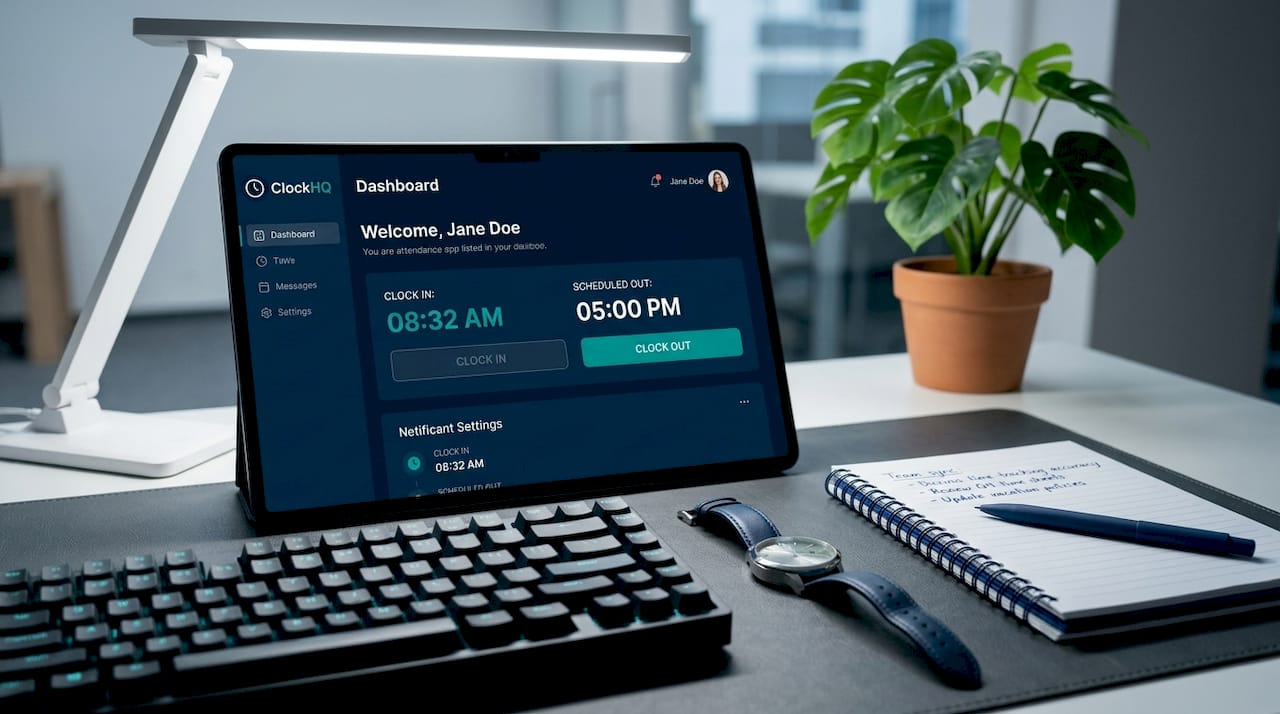
Time and attendance trackers record hours for review. ClockHQ records staff clock-ins and clock-outs through a workplace QR code and PIN in a browser; installing an app is not required. It supports standard weekly schedules for managers to compare with actual clock records. Lunch breaks can be clocked or configured as automatic. Published materials do not establish a mobile app or employee shift-assignment feature.
Payroll platforms receive the data. Common choices for retail businesses include Gusto, ADP Run, QuickBooks Payroll, and Xero Payroll. The platform you already use determines which integration path is fastest.
Middleware connectors can automate transfers when both services expose a documented, supported connection. Check each vendor’s current documentation, permissions and limits before planning a workflow; do not assume every time tracker can connect to every payroll tool.
| Tool type | Example tools | Setup time | Approximate cost |
|---|---|---|---|
| Time tracker | ClockHQ (summaries/exports for payroll preparation) | Vendor-dependent | Low monthly fee |
| Payroll platform | Gusto, ADP Run, QuickBooks | 1 to 2 hours | Per-employee fee |
| Middleware connector | Make, Zapier | 4 to 8 hours | Free to mid-tier plans |
| Full HRIS suite | Rippling, Workday | 1 to 4 weeks | Enterprise pricing |
Setup time depends on the products, export format, payroll import requirements and review process. ClockHQ’s published materials describe summaries or exports for payroll preparation, not a native connector or guaranteed automated transfer.
Pro Tip: When both vendors document a supported native connector, review its limits and test it before relying on it. Otherwise, use the documented export and import process. ClockHQ’s published materials do not confirm a native connector.
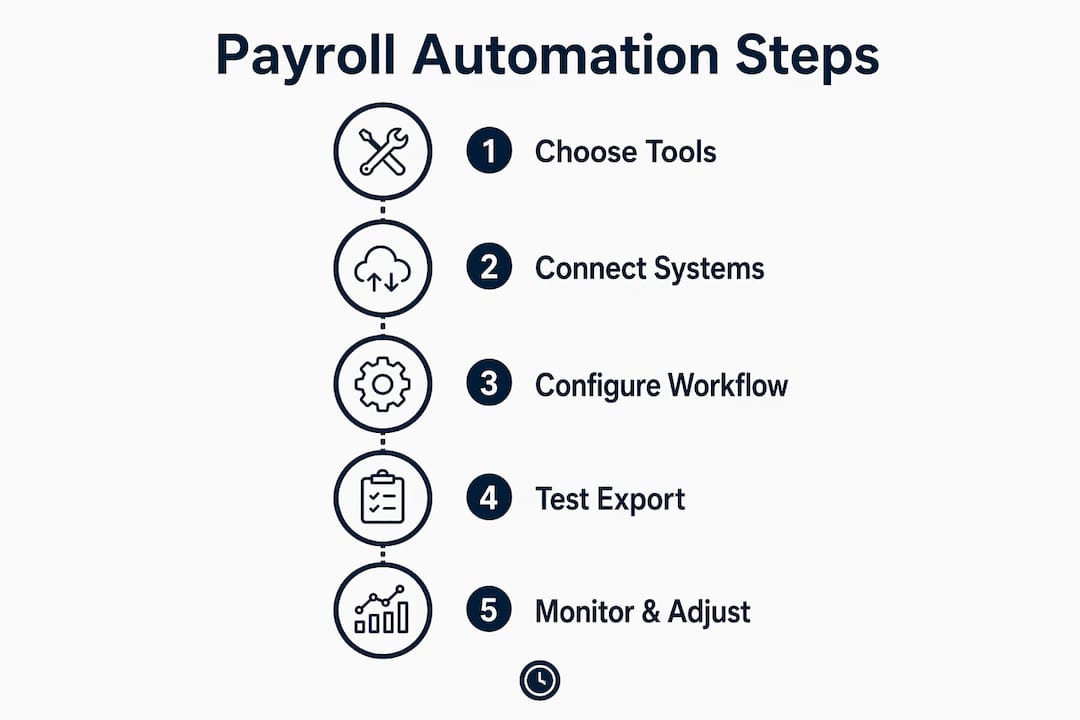
How to set up automated payroll hour exports: a step-by-step guide
A careful setup depends on the tools and transfer method. Document the process, test sample data, and reconcile totals before relying on a new workflow.
-
Audit your current process. Document every manual step you take today: where hours are recorded, how they are reviewed, who approves them, and how they reach payroll. This map tells you exactly which steps the automation must replace.
-
Choose a verified export route. ClockHQ provides timesheet summaries or exports for payroll preparation, but its published materials do not confirm a native payroll connector, API, webhook or scheduled middleware workflow. Follow the payroll provider’s import instructions, review the data and reconcile totals before using it for pay.
-
Map your data fields. Match every field in your time tracker to the corresponding field in your payroll platform. Employee ID, pay rate type, regular hours, overtime hours, and department codes all need explicit mappings. Mismatched fields are the leading cause of export errors.
-
Load and test with historical data. Run the integration against two to four weeks of past timesheet data. Compare the automated output against what you processed manually. Discrepancies at this stage are cheap to fix.
-
Run parallel exports for one week. Parallel manual and automated runs for at least one week before cutting over is the industry standard for verifying accuracy. Process payroll both ways and reconcile the totals before you trust the automated output alone.
-
Cut over and monitor closely. Switch to the automated export as your sole process. Check the first three pay runs manually to confirm totals match expectations. Set up email or Slack alerts for export failures.
-
Document and hand off. Write a one-page runbook that explains what the automation does, where to find logs, and what to do if an export fails. This protects you when the person who built it is on vacation.
Pro Tip: Build a retry mechanism into any middleware workflow. Failure handling with retries and manual fallback is the difference between an automation that recovers quietly and one that causes a missed pay run.
What are common challenges and how do you avoid errors?
Automation can reduce repeated data entry when a supported workflow is correctly configured, but it can also introduce failures such as incorrect mappings or duplicate transfers. Review output and keep a correction process in place.
The most frequent error sources in retail payroll hour export automation include:
-
Missing clock-outs. An employee forgets to clock out, leaving an open shift that the export skips or flags as an error. Fix this by requiring managers to approve and close all open shifts before the export window runs.
-
Overtime miscalculation. If your time tracker and payroll platform use different overtime thresholds, hours can be categorized incorrectly. Confirm both systems use the same daily and weekly overtime rules before go-live.
-
Duplicate exports. Middleware workflows triggered by both a schedule and a webhook can export the same pay period twice. Use idempotency keys or deduplication logic in Make or Zapier to prevent this.
-
Employee ID mismatches. If an employee’s identifier in one system differs from the payroll system, the record may fail to import. Audit the roster in both systems before the first live transfer.
-
Corrected time entries arriving late. A manager approves a correction after the export has already run. Build a correction workflow that flags late changes and triggers a supplemental export or manual adjustment.
Automation reduces payroll admin time and errors, freeing retail managers to focus on workforce management rather than data entry. The key is treating your automated workflow as a system that needs monitoring, not a set-and-forget solution. Weekly spot checks on export logs catch 90% of issues before they affect a pay run.
Some time systems retain timestamped clock records, but the records and audit details available vary by product. Check what your provider documents before relying on a record to resolve a dispute.
Which automation method fits your retail business size?
The suitable export method depends on vendor support, data needs, scale and available technical resources. Do not assume size alone determines whether a connector or middleware is supported.
| Approach | Best fit | Setup difficulty | Ongoing maintenance | Relative cost |
|---|---|---|---|---|
| Documented connector, if supported | Small stores, single location | Low | Minimal | Low |
| Middleware (Make, Zapier) | Mid-size, 2 to 10 locations | Medium | Moderate | Low to medium |
| Full HRIS integration | Enterprise, 10+ locations | High | Significant | High |
| Manual CSV export | Micro-businesses, under 5 staff | None | High (manual) | Lowest |
Small retailers should choose a transfer method that both vendors document and support. ClockHQ’s published materials describe timesheet summaries or exports for payroll preparation, not a native payroll connector or guaranteed compatibility.
Some businesses use middleware for supported workflows across multiple systems. Confirm the required connections, permissions and handling with each vendor before building one.
Enterprise retailers with 10 or more locations typically need a full HRIS platform like Rippling or Workday that handles time, payroll, and HR in one system. The setup cost is significant, but the long-term reduction in reconciliation work justifies it at scale.
One principle applies at every size: build for where you will be in two years, not where you are today. Choosing a tool that cannot scale past 50 employees means rebuilding the entire workflow when you open your third location.
How to ensure compliance and proper recordkeeping with automated exports
United States-specific recordkeeping context: Automating an export does not transfer an employer’s legal obligations to a software vendor. Retention rules vary by record type and jurisdiction. Check current federal, state and local requirements, and retain required records independently; do not assume ClockHQ provides permanent storage or a guaranteed retention period.
For U.S. federal requirements, consult current Department of Labor and IRS guidance for each record category and consider applicable state rules. The requirements and retention periods differ by record type; seek qualified advice for a specific business.
Automating the export of payroll hours does not remove your obligation to retain the underlying time records. Your automated system must store or forward those records to a compliant archive, not simply pass them through and discard them.
For ClockHQ specifically, published materials describe a record-keeping aid; they do not establish an immutable audit trail or guaranteed compliant archive.
Practical steps include exporting records that the provider documents, restricting access appropriately, and maintaining a separate archive that meets the business’s retention obligations. ClockHQ’s published materials do not establish an immutable edit-history audit trail or a guaranteed archive; its terms describe a record-keeping aid, not a compliance guarantee.
For businesses that also need external payroll compliance support, services like CWABC payroll compliance can help you verify that your automated records meet both federal and state retention standards.
Key takeaways
A reliable payroll-hour process uses a transfer method supported by both vendors, tests the results before relying on them, and retains required records for the applicable jurisdiction.
| Point | Details |
|---|---|
| Start with the right tools | Use vendor-documented methods; ClockHQ does not verify direct integration. |
| Test before you cut over | Run parallel manual and automated exports for at least one week to verify accuracy. |
| Build failure handling in | Retries and manual fallback prevent silent export failures from causing missed pay runs. |
| Know your retention obligations | U.S. retention duties vary; check current official guidance. |
| Match method to business size | Choose among a documented connector, supported middleware, manual export or HRIS based on vendor support and business needs. |
Practical lessons for a reliable payroll export workflow
A payroll export workflow needs monitoring after launch. Missed clock-outs, pay-rate changes or employees working across roles can expose gaps in the process. Test edge cases, review export records and document how corrections are handled.
A practical rollout includes a monitoring period, regular checks of exported data, a correction process and documentation that another manager can follow.
Choose a workflow that fits the verified features and the business’s actual needs. Do not assume ClockHQ connects natively to Gusto or QuickBooks Payroll; confirm the export/import process with both providers before relying on it.
Payroll tools continue to evolve. Before adopting new automation, verify current provider support and test the workflow with reviewed data.
How Clockhq makes retail payroll hour exports simple
ClockHQ records staff time through a workplace QR code and PIN in a browser. It supports standard weekly schedules and manager comparison of scheduled hours with clock records, and managers can review leave or early-finish requests.
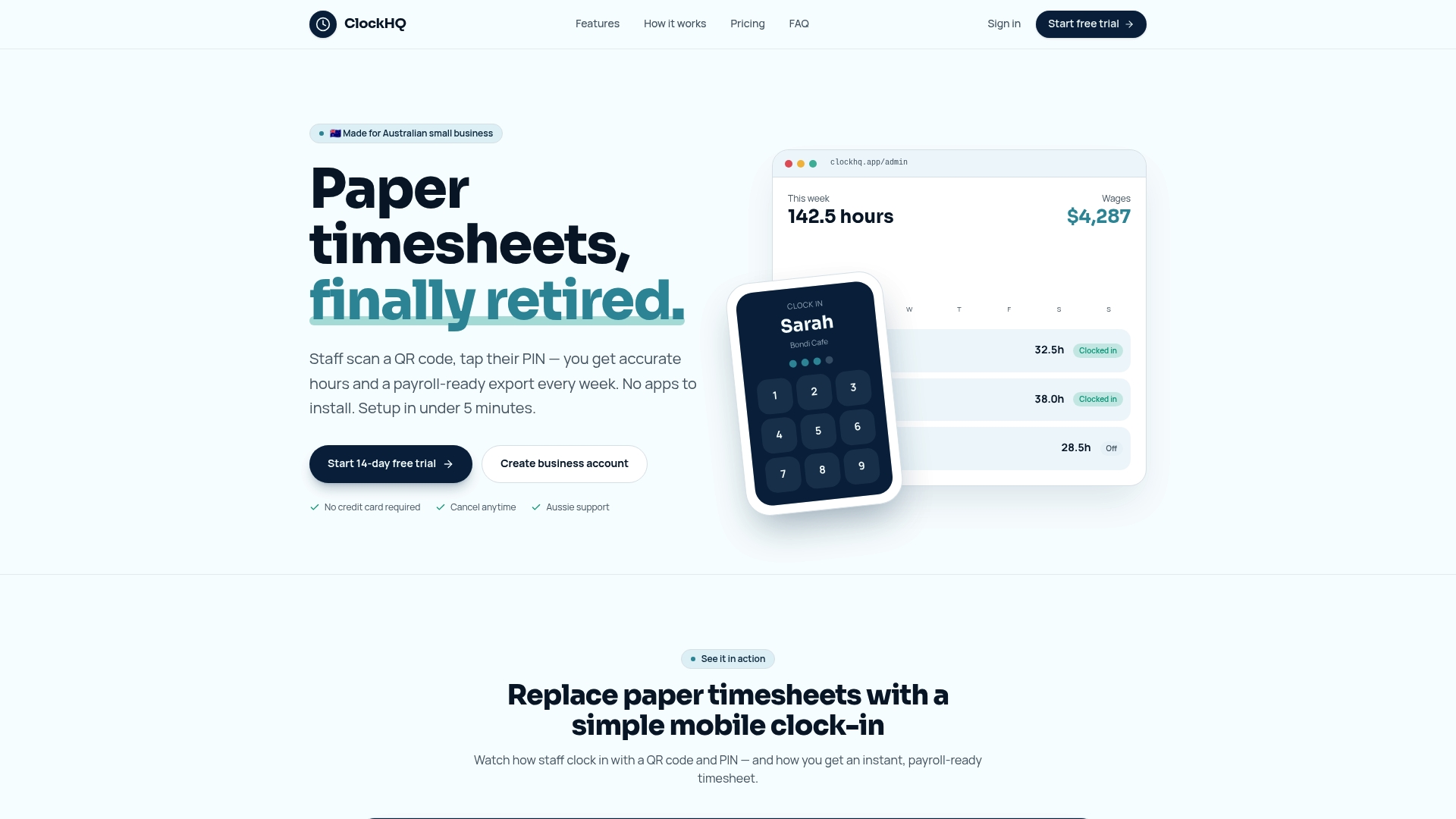
ClockHQ provides timesheet summaries or exports for payroll preparation. It does not process payroll or guarantee compatibility with every payroll provider. Pricing is AUD $7.95 per month per business or AUD $59.40 per year billed annually (AUD $4.95 per month equivalent), with unlimited staff and a 14-day trial without a credit card.
FAQ
What does it mean to automate retail payroll hour exports?
Payroll transfer methods vary. Some providers support a documented direct integration; others require CSV or spreadsheet exports and manual import. ClockHQ provides summaries or exports for payroll preparation, but its published materials do not verify direct integration or guaranteed compatibility.
How long does it take to set up payroll hour export automation?
Setup time depends on the providers, import format, data mapping and testing required. ClockHQ does not publish a guaranteed setup time for a direct payroll connection.
How long must retail businesses keep payroll records?
United States-specific: Record-retention requirements vary by record type and applicable federal, state and local rules. Check current Department of Labor and IRS guidance; do not treat this as advice for Australia or other countries.
What happens if an automated payroll export fails?
A well-built automation includes retry logic and a manual fallback process. If the export fails after retries, the system should alert the payroll administrator and queue the records for manual review rather than silently skipping them.
Is a middleware tool like Make or Zapier necessary for retail payroll automation?
Choose a transfer method that both vendors document and support. ClockHQ’s published materials do not verify a native payroll integration or middleware connection; its timesheet summaries or exports are for payroll preparation.